Access Center
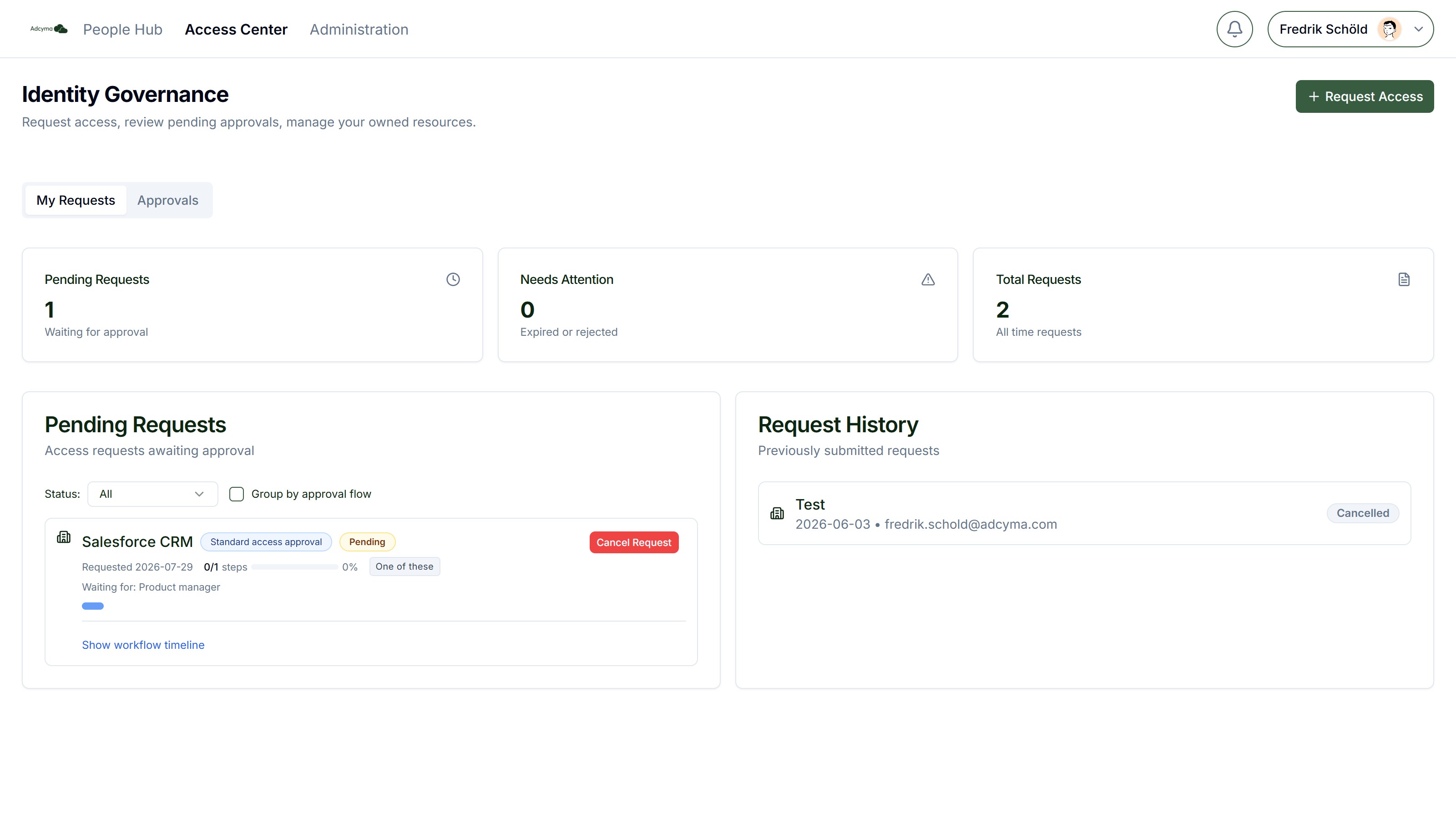
The Access Center is the end-user interface for identity governance. It's where employees request access to resources, track their requests, approvers act on requests assigned to them, and resource owners manage their resources. It's available from the top navigation next to the People Hub.
The Access Center is part of the Identity Governance (IGA) add-on. Users need the Access Center User or Admin role to see it; see User Permissions.
My Requests
The My Requests tab gives each user an overview of their own access requests: how many are pending, how many need attention (expired or rejected), and their full request history.
Submitting a Request
Click Request Access and fill in:
- What do you need access to? Pick a resource from the catalog, organized by unit. If what you need isn't listed, you can describe it as a custom request.
- How long do you need access? Choose a duration (limited by the maximum the administrator configured for that resource) or pick a specific end date.
- Why do you need this access? Write a justification. Be specific about your business need; this is what approvers read when deciding.
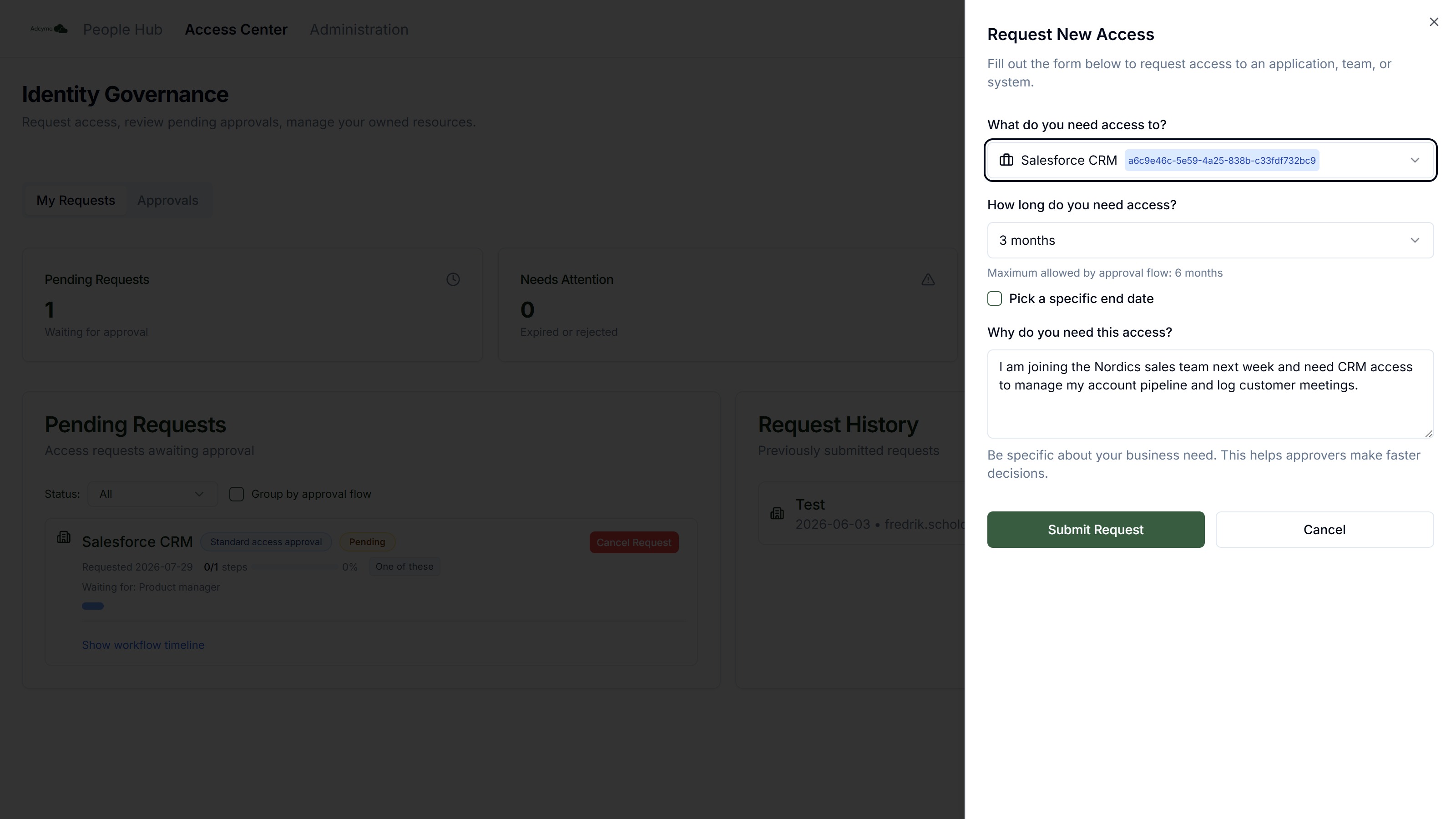
The request is then routed to the approval workflow configured for that resource. You can track its progress from the Pending Requests panel, including which approval stage it's on and who it's waiting for, and cancel it if it's no longer needed.
Approvals
If you've been designated as an approver, the Approvals tab shows requests waiting for your action, with a badge showing the count.
For each request you can see who is requesting access, which resource, their justification, and the requested duration. Click Review to open the request detail page, which shows the full approval workflow with every stage and approver, and lets you Approve (optionally with a comment) or Deny (with a reason).
How your action interacts with other approvers depends on the flow's approval mode:
- One of these - Your approval alone is sufficient
- All of these - Every approver must approve
- All of these in order - Approvers must approve in sequence
Owned Resources
If you're the owner of one or more resources, an Owned Resources tab appears. It lists your resources and their current members, grouped by target group, with each member's approval and expiry dates.
If the administrator has enabled Allow owner to manage members for your resource, you can:
- Add User to a target group, either from the directory or as an external member by email
- Kick a member to revoke their access
Otherwise your view is read-only.
Owned Dynamic Groups
If you own any dynamic groups, they also appear here with options to manage the Always Include and Always Exclude override lists. This lets you handle exceptions without modifying the underlying rules. For example, you can add a contractor who doesn't match the standard criteria, or exclude a user who shouldn't have access despite matching the conditions. The membership rules themselves are read-only for owners; exclusion wins if a user is on both lists.
Best Practices
- Write clear justifications when requesting access. This helps approvers make faster decisions.
- Request only the access duration you actually need. Shorter durations reduce security risk and make audits simpler.
- If you're an approver, review pending requests promptly to avoid blocking your colleagues.
- As a resource owner, periodically review who has access to your resources and clean up any stale memberships.
Troubleshooting
If you can't see the Access Center:
- Check with your administrator that the Identity Governance add-on is enabled
- Verify you have the Access Center User (or Admin) role
If a resource you need isn't listed:
- It may not have been added to the catalog yet. Submit a custom request or contact your administrator.
If your request seems stuck:
- Check which approver it's waiting for (shown on the request card)
- The approver may be out of office. Contact them directly or ask your admin.